A companion for learning CW

Listen along.
Get a little help.

DitDah is a terminal-based CW companion written in Go, built for beginner operators who are starting to make real QSOs but still miss a few characters. It writes along with the signal, then helps you put the contact in your log and optionally sync it to QRZ.com.

macOS Linux Windows Terminal UI · Written in Go · Open source

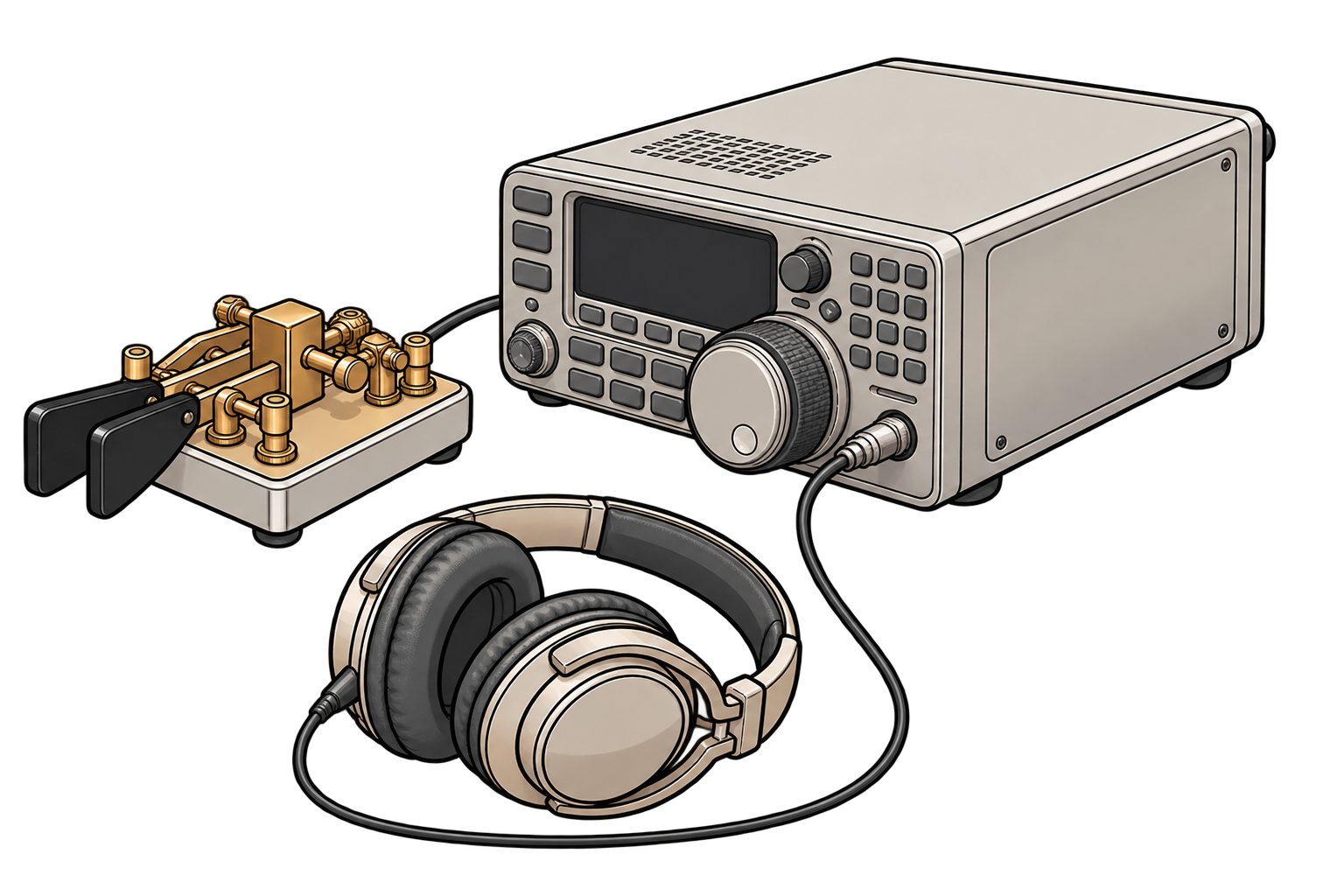
A quiet evening on the bands

From signal to text.
Without breaking your flow.

Find a signal on your radio, tune it carefully, and narrow the filter until the beeps are easy to hear. DitDah listens to the same audio and gives you a readable second opinion while you copy it yourself.

02

Logbook + QSO editor

Log the contact when you make it.

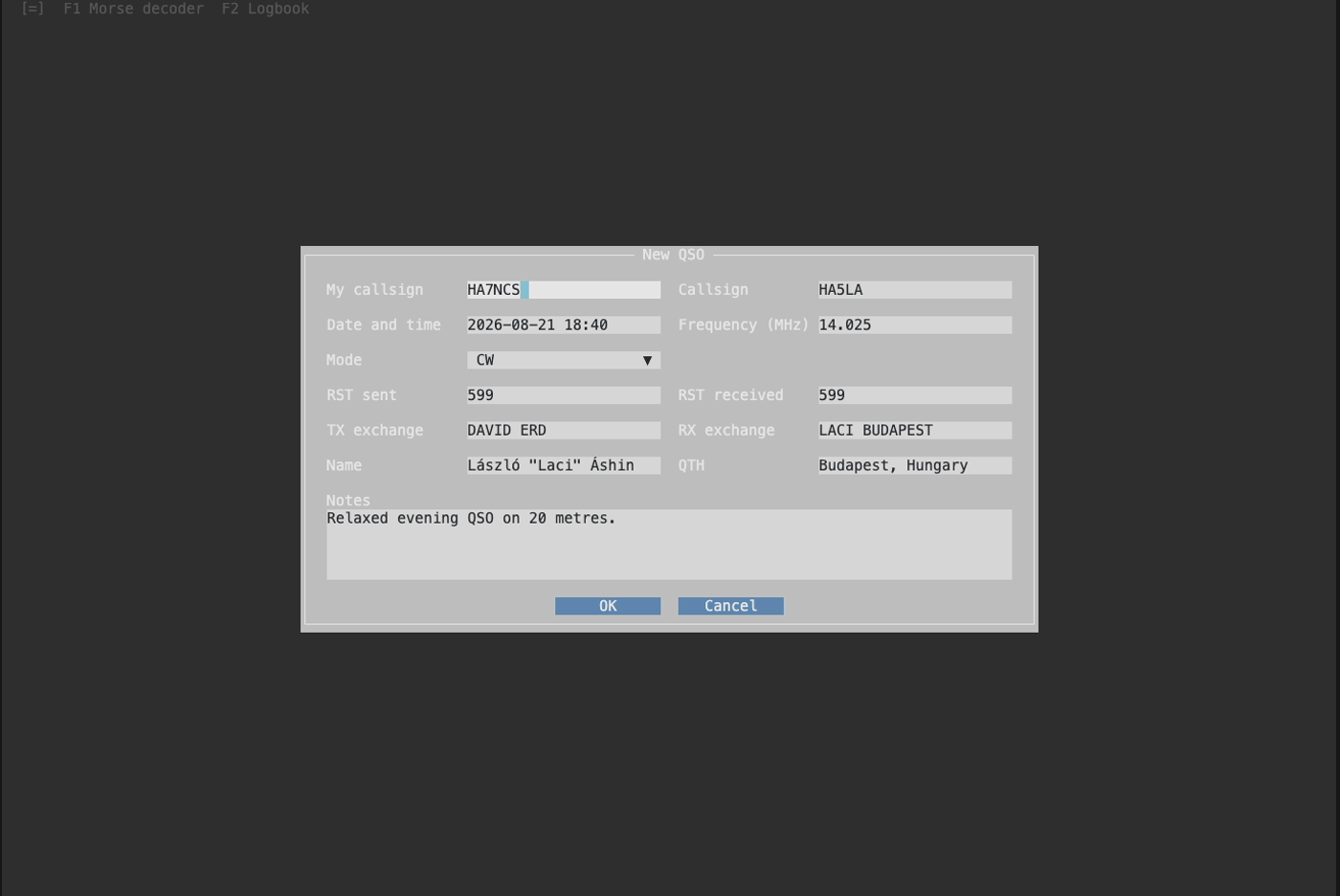
Move the callsign straight into a new QSO, fill in the report and anything else you want to remember, then save it locally. If you use QRZ.com, completed contacts can be synchronized from the same logbook.

  • Prefilled QSO from the decoded callsign
  • Simple local logbook with search
  • Optional QRZ.com lookup and synchronization
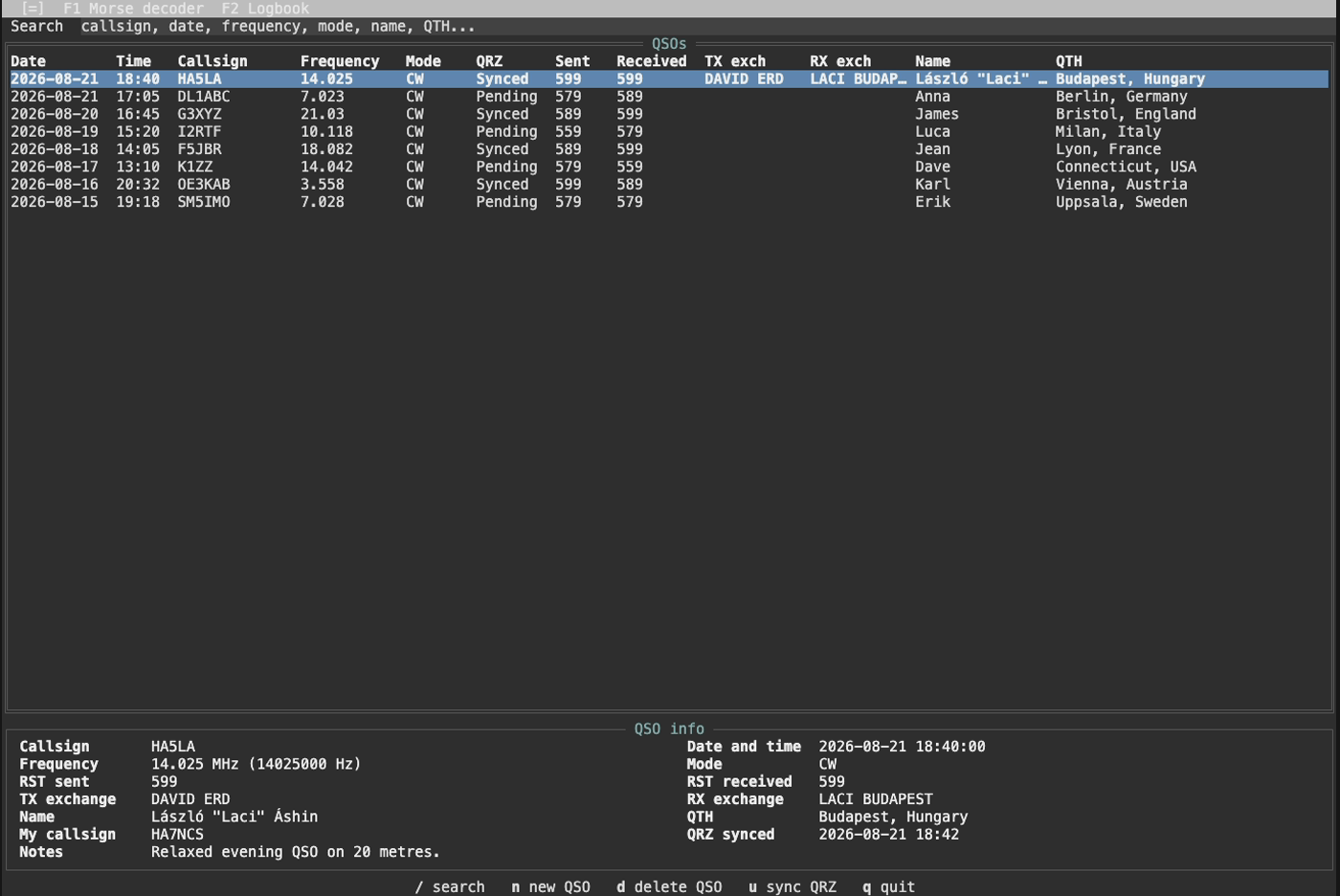
DitDah logbook populated with CW contacts and details for the selected QSO
Searchable local logbook with QRZ synchronization status.
DitDah New QSO editor filled with a contact
The QSO editor keeps the details of the contact together.
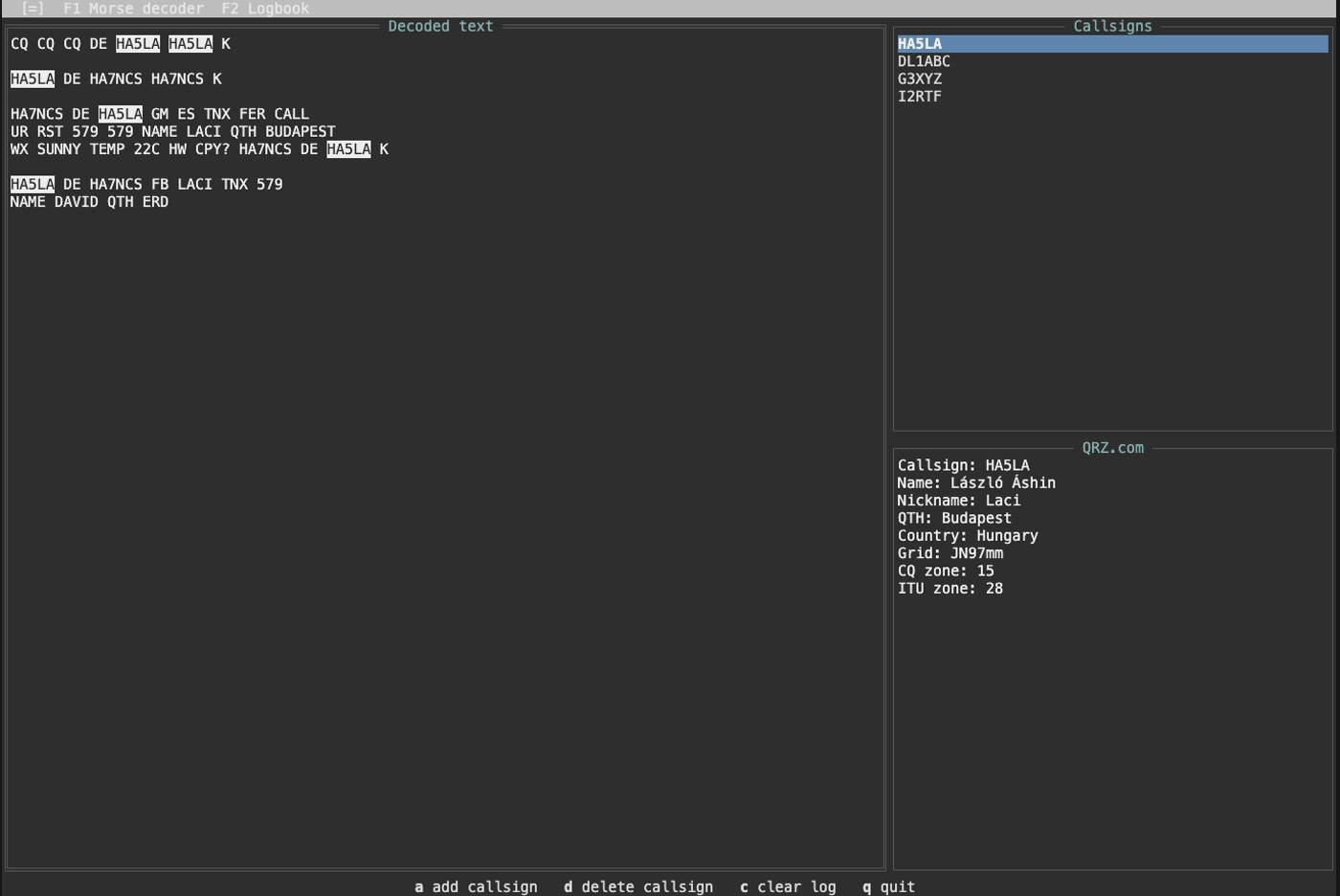
DitDah Morse decoder with decoded QSO text, a populated callsign list, and QRZ details
Decoded text, callsigns, and station details in one view.
01

Live Morse decoder

Start with a signal

DitDah uses a neural network trained to decode Morse between 10 and 40 WPM. It is reasonably tolerant of background noise, but a well-tuned, filtered signal helps the decoder just as much as it helps your ears.

  • Use your transciever's USB audio interface or a microphone when the source is loud and clear enough
  • Route audio from an SDR or WebSDR through a virtual input such as BlackHole on macOS
  • Keep callsigns and QRZ details beside the decoded text

Designed for relaxed operating

A helper, not an autopilot.

DitDah is meant to sit beside you while your Morse ear develops. Listen first, glance at the text when you need it, and take your time with the contact.

Good fit

One clear signal and an unhurried QSO.

Calling CQ, answering a station, casual conversations, and listening practice at a comfortable speed.

Not for

Pileups, contests, or separating several stations.

DitDah does not replace careful tuning, contest software, or your own judgment about what was actually sent.

Installation

Your next QSO starts
with a dit and a dah.

Choose your platform.

Getting started

Get your receiver audio into DitDah.

DitDah decodes the audio you hear from your receiver, so the first step is to make that audio available as an input on your computer.

Physical radio

Connect your receiver

Many modern transceivers provide received audio directly over USB. Connect the radio to your computer, then select the radio's USB audio device as the input in DitDah.

If your radio does not provide USB audio, use a suitable analog audio output from the receiver and connect it to an audio input on the computer or to an external USB audio interface.

SDR & WebSDR

Route audio between applications

Audio can also come from SDR software, a browser-based WebSDR, or another application. This is especially useful for receive-only operation. For example, when casually listening around the bands as an SWL (shortwave listener) and you do not intend to transmit. A virtual audio device lets the source application send its output directly to DitDah.

Set the virtual device as the output of your SDR or browser audio, then select the same virtual device as the input in DitDah.

First run

Choose your input and start listening

  1. Start DitDah in a terminal.
  2. Open the [=] menu and select Settings .
  3. Enter your station callsign.
  4. Select the audio input carrying your receiver, SDR, or WebSDR audio.
  5. Optionally configure your QRZ.com credentials.
  6. Press F1 to open the logbook or F2 to open the Morse decoder.

Your terminal may ask for microphone permission the first time you open the decoder. This allows DitDah to access the selected audio input. Your settings are stored in logbook.db and restored the next time you start DitDah.